
HubSpot
Revenue & CRM
Review HubSpot deals before creating or linking RunwayCal deal records.
What it does
Connect HubSpot to read supported contacts, companies, and deals. RunwayCal presents deal suggestions for review so you can link an existing deal or create a new one without writing back to HubSpot.
Prerequisites
- A HubSpot account with deals in your pipeline
- Admin or Super Admin access to authorize the connection
Step-by-step setup
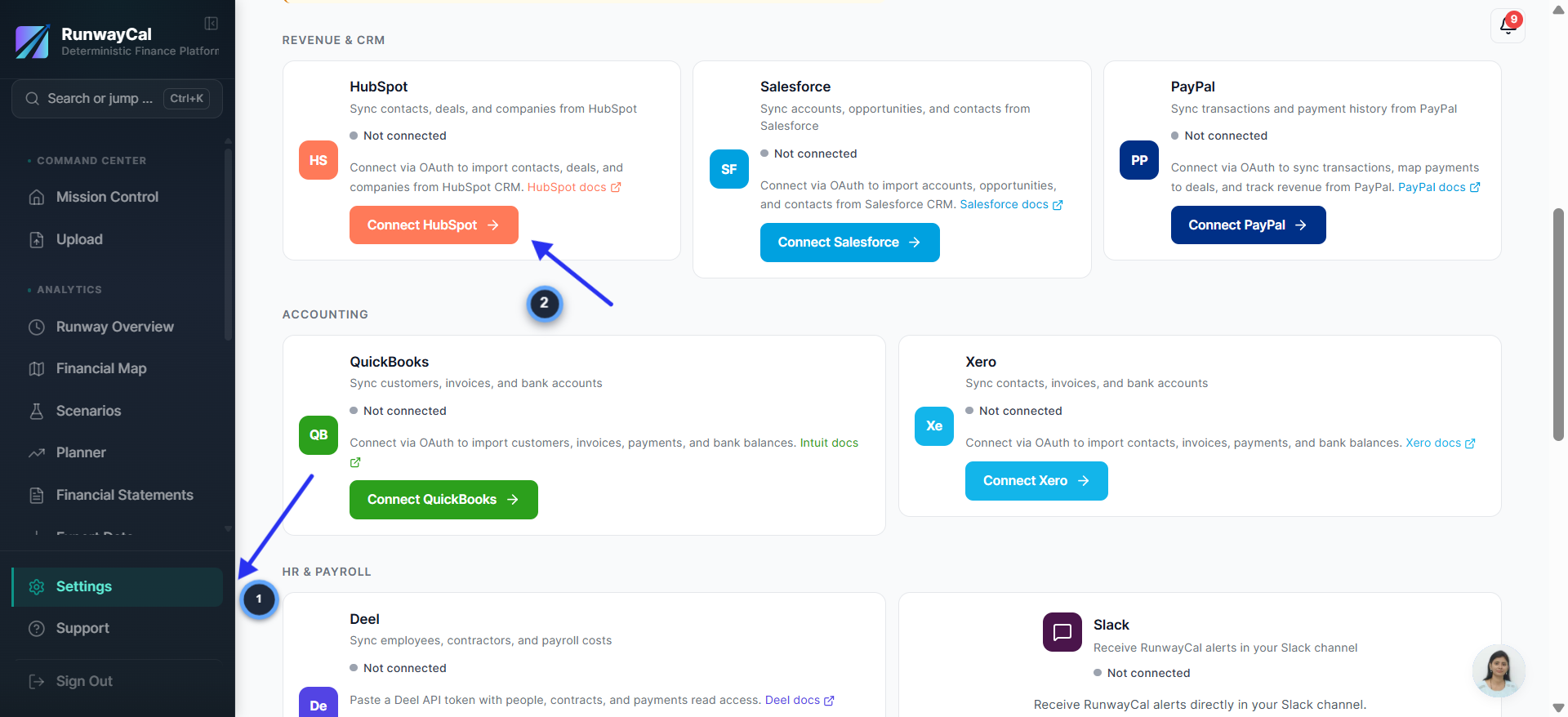
Go to Settings and click Connect HubSpot
- 1.In RunwayCal, click "Settings" in the left sidebar
- 2.Click the "Integrations" tab at the top
- 3.Scroll down to the "Revenue & CRM" section
- 4.Find the HubSpot card and click "Connect HubSpot"
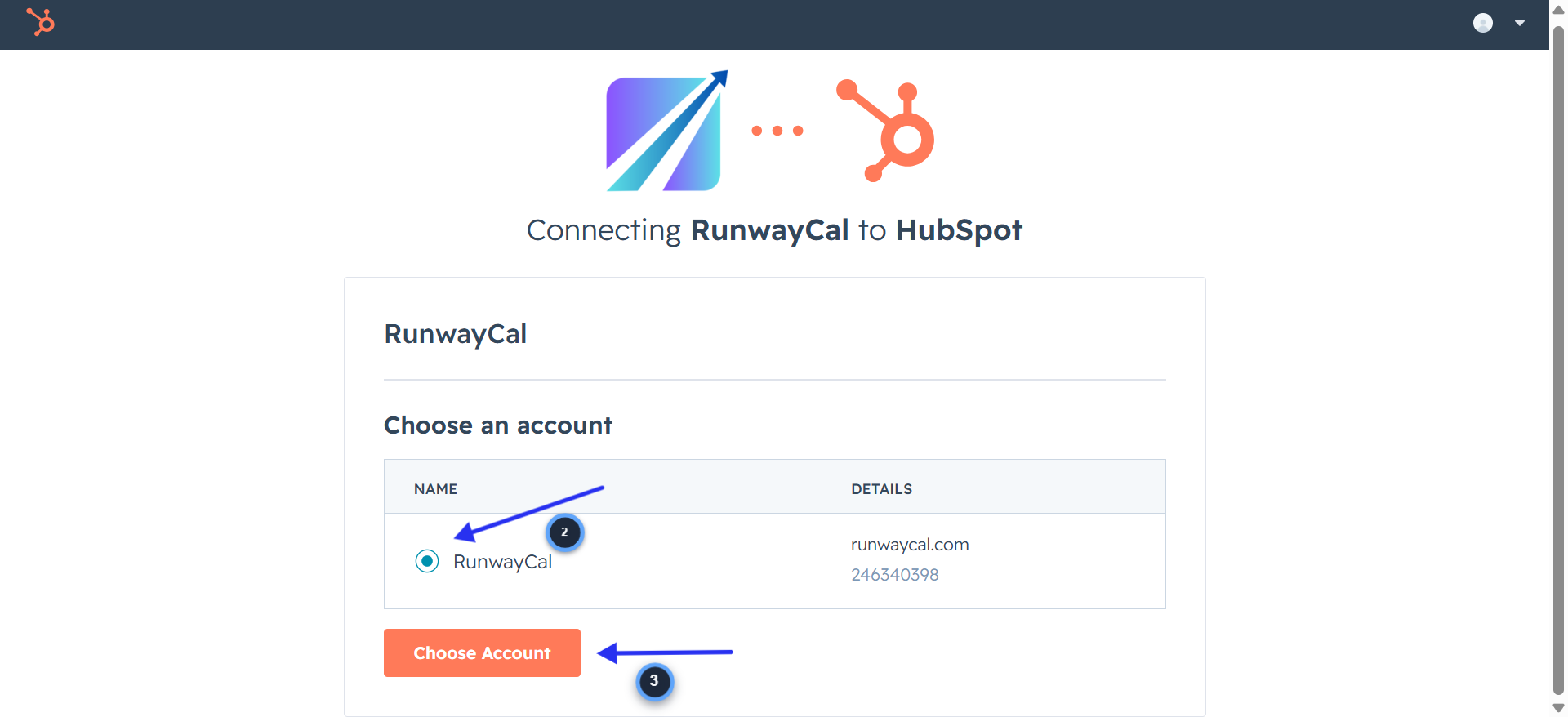
Choose your HubSpot account
- 1.You will be redirected to HubSpot
- 2.You will see "Connecting RunwayCal to HubSpot" with your HubSpot accounts listed
- 3.Select the account you want to connect (click the radio button next to it)
- 4.Click "Choose Account"
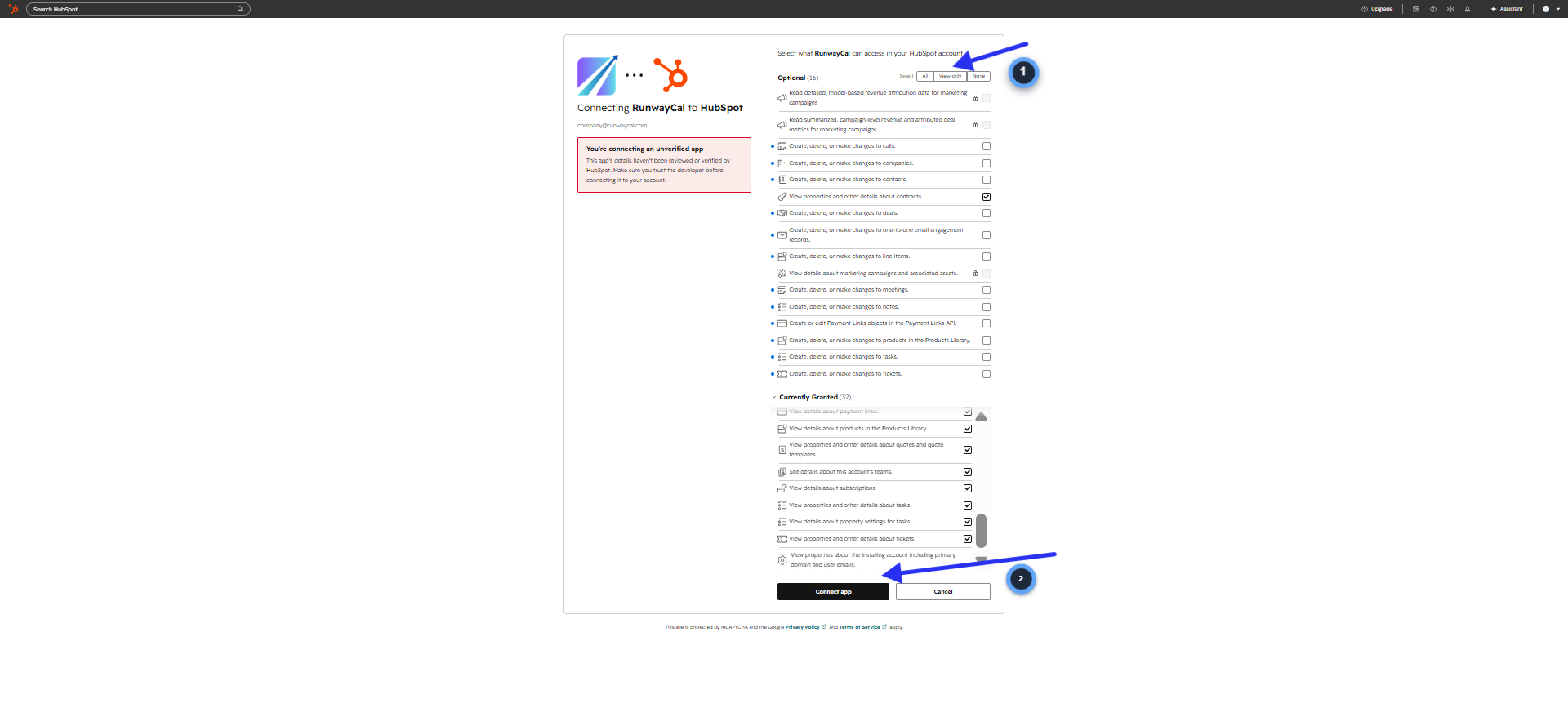
Review permissions and connect
- 1.HubSpot shows what RunwayCal can access in your account
- 2.Review the permissions listed under "Currently Granted" (contacts, deals, companies, properties)
- 3.You can toggle "View-only" to ensure RunwayCal only reads data
- 4.Click "Connect app" at the bottom
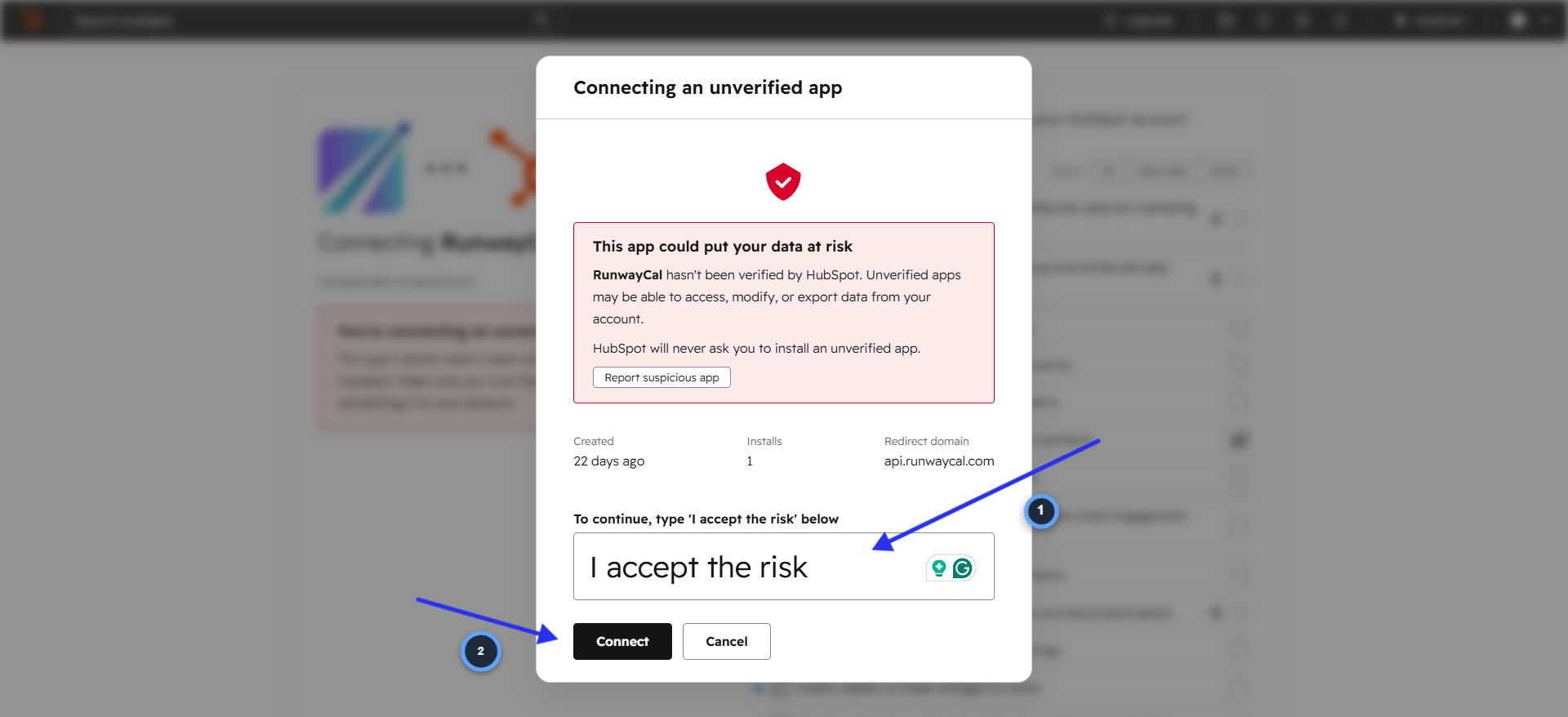
Accept the unverified app warning
- 1.HubSpot shows a warning: "Connecting an unverified app. This app could put your data at risk."
- 2.This appears because the RunwayCal app has not completed HubSpot verification. Confirm that you opened the authorization flow from RunwayCal and review the requested access before continuing.
- 3.Type "I accept the risk" in the text field
- 4.Click "Connect"
Verify connection in RunwayCal
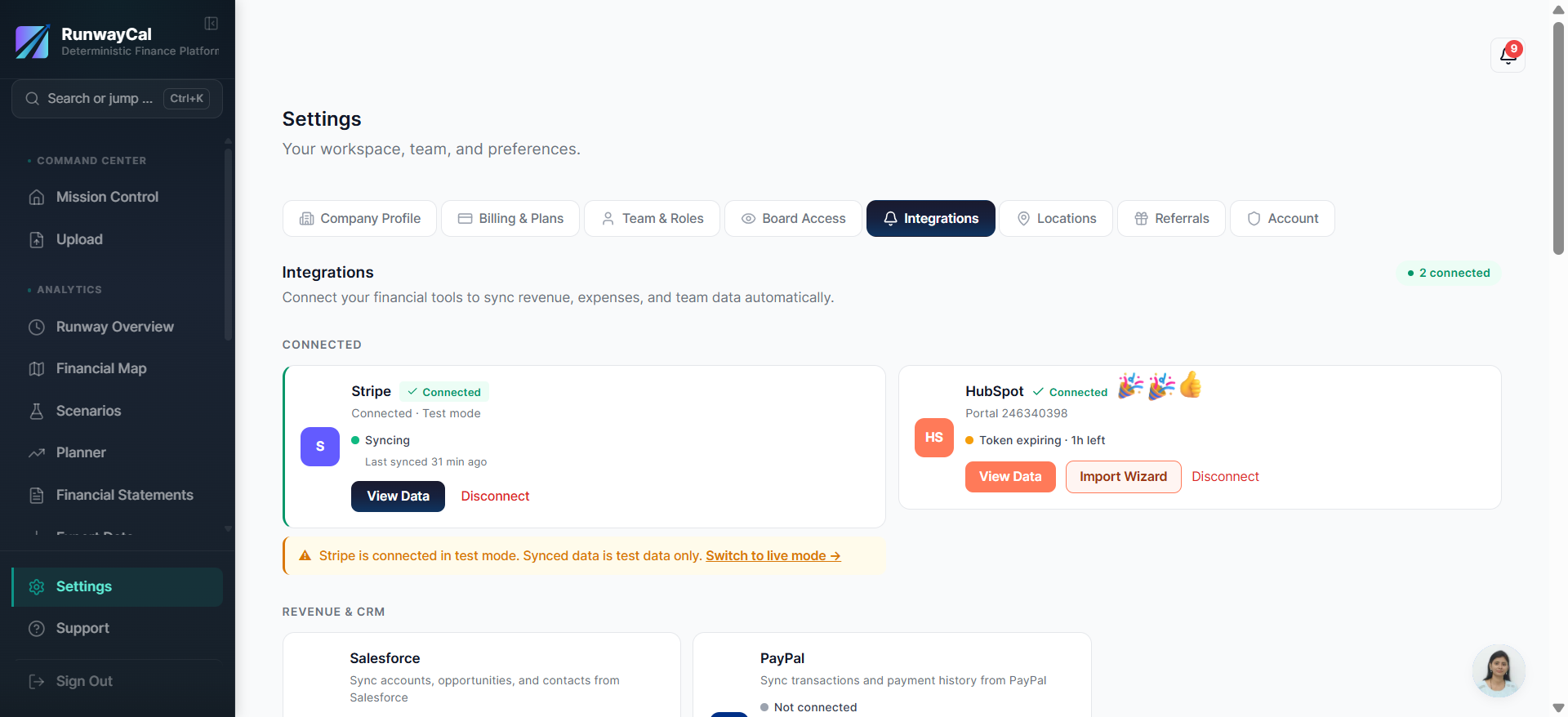
- 1.You will be redirected back to RunwayCal
- 2.The HubSpot card should show a green "Connected" badge
- 3.Your HubSpot portal ID will appear below the badge
- 4.You may see an amber "Token expiring" indicator. This is normal. RunwayCal auto-refreshes your token.
What you'll see after connecting
The HubSpot card shows a green "Connected" badge with your CRM name. Use "View Data" to refresh available deals and review each suggested link or creation action.
Available connection data
| Data | Description |
|---|---|
| Pipeline deals | Open deals available for review |
| Won deals | Closed-won deals available for review |
| Deal amounts | Dollar values from HubSpot deal properties |
| Close dates | Close dates supplied by HubSpot |
Troubleshooting
"Connecting an unverified app" warning
This warning appears because the RunwayCal app has not completed HubSpot verification. Confirm that you opened the authorization flow from RunwayCal and that the requested access is limited to supported contacts, companies, and deals. RunwayCal does not write to or delete HubSpot records. If the account and access shown are the ones you expect, follow HubSpot's prompt to continue.
Connection failed after authorizing
Try disconnecting and reconnecting. If it persists, check that your HubSpot account has deals enabled.
Token expiring (amber dot)
This is normal. RunwayCal auto-refreshes your HubSpot token. No action needed.
Stale data
Click "View Data" then "Sync Now" to pull the latest from HubSpot.