
Xero
Accounting
Review Xero customers and received invoice payments before importing them.
What it does
Connect Xero to read supported contacts, invoices, payments, bank-account context, and related accounting records. The current import workflow stages customers as deals and received invoice payments as receipts for your approval; it is not continuous bank reconciliation.
Prerequisites
- A Xero account with an active organization
- Standard or Advisor role in Xero
Step-by-step setup
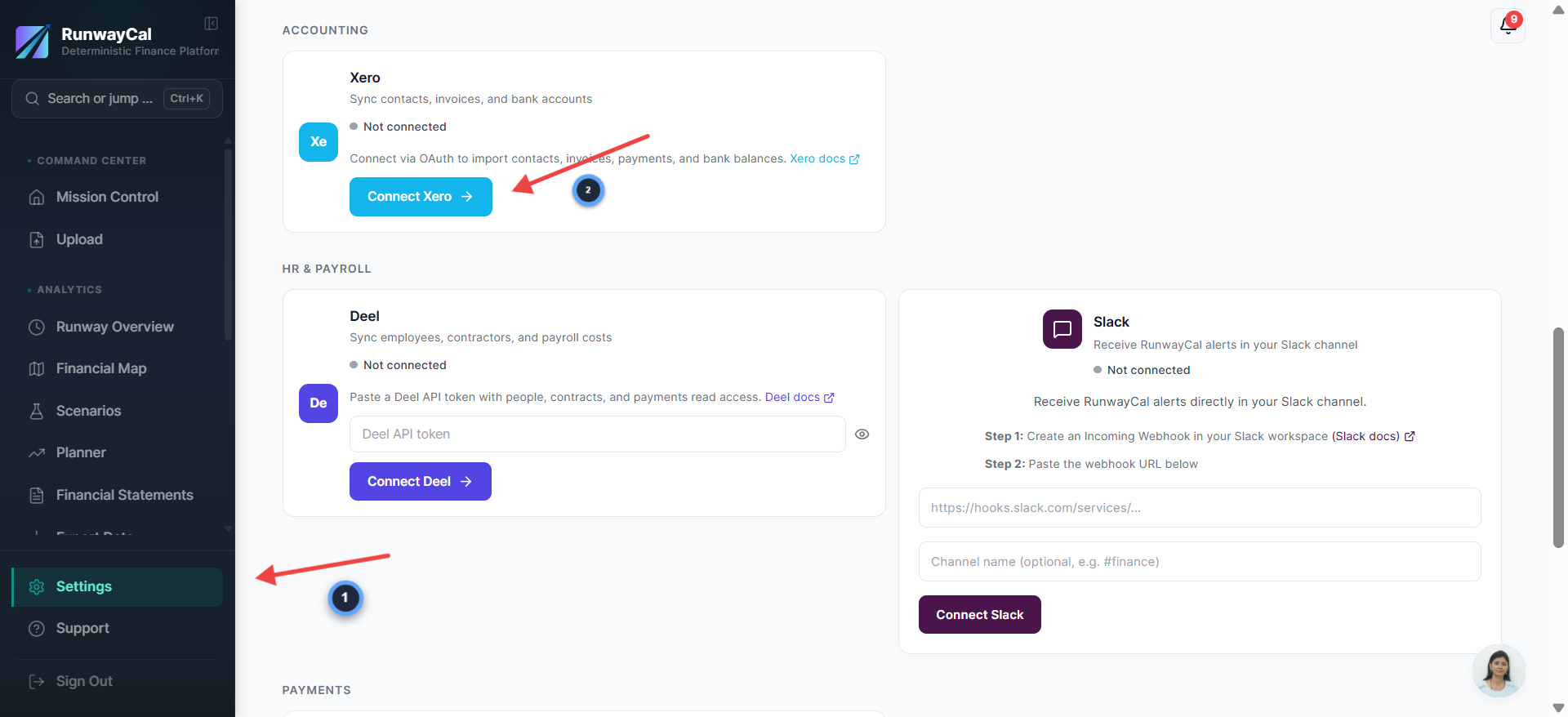
Go to Settings and click Connect Xero
- 1.In RunwayCal, click "Settings" in the left sidebar
- 2.Click the "Integrations" tab at the top
- 3.Scroll down to the "Accounting" section
- 4.Find the Xero card and click "Connect Xero"
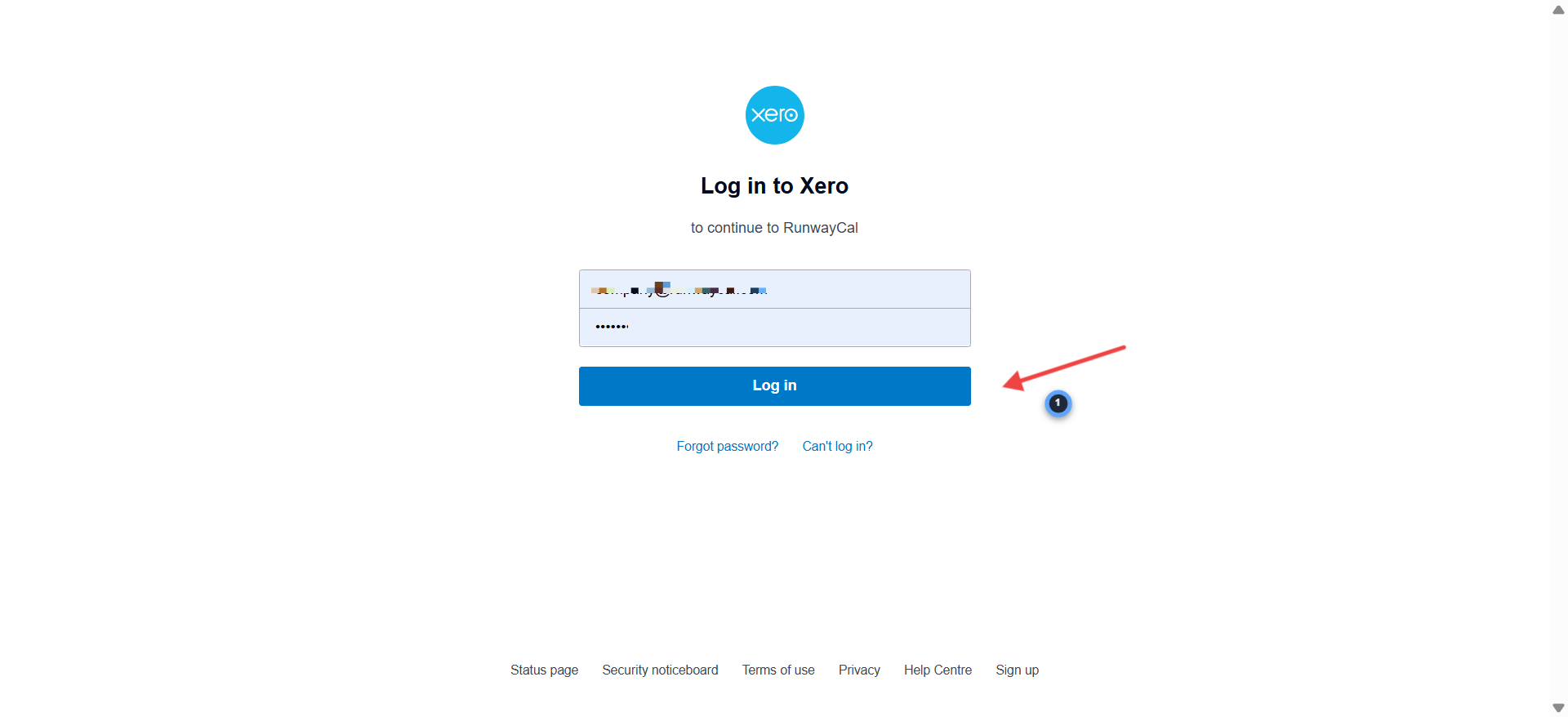
Log in to your Xero account
- 1.You will be redirected to Xero's login page
- 2.The page will say "Log in to Xero to continue to RunwayCal"
- 3.Enter your Xero email and password
- 4.Click "Log in"
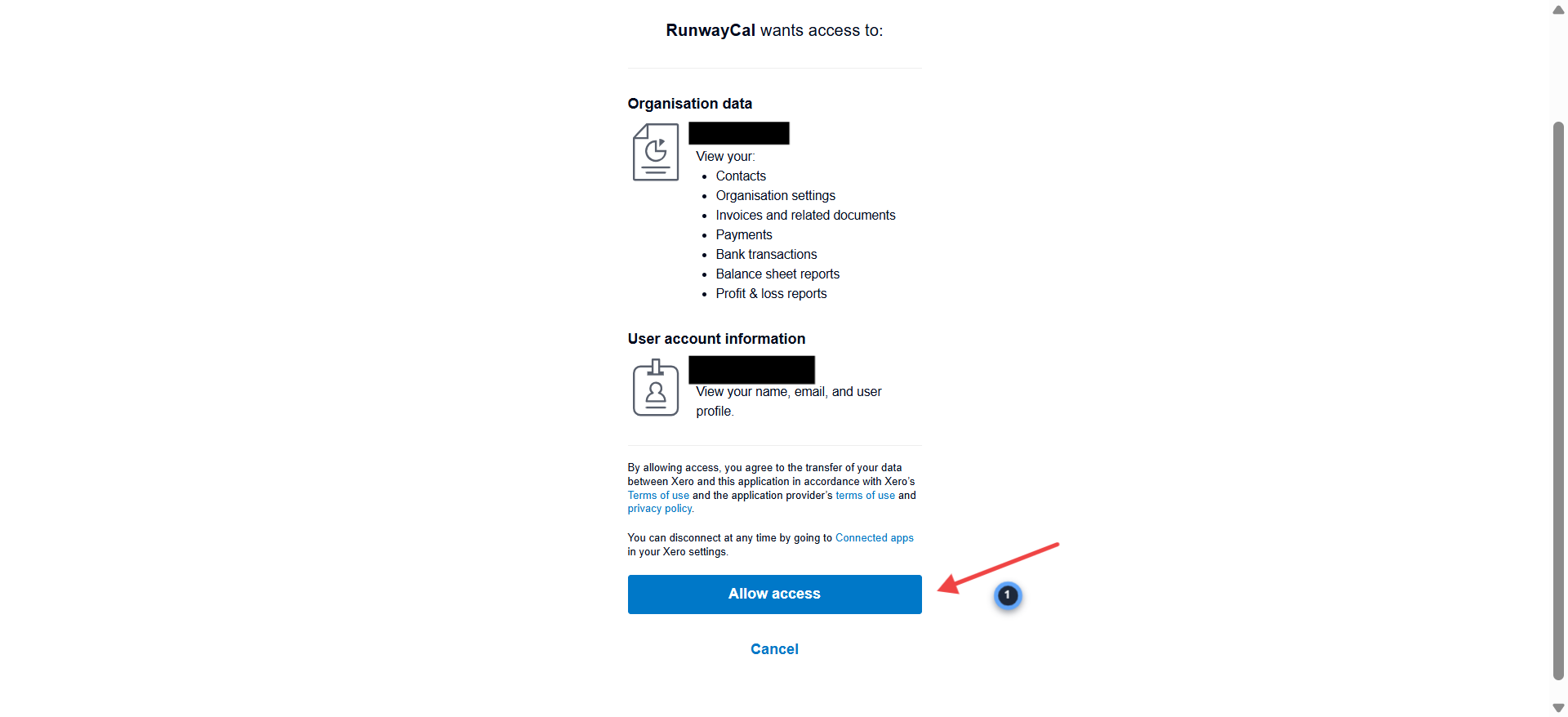
Allow RunwayCal access to your Xero data
- 1.Xero shows what RunwayCal wants to access: Organisation data (contacts, invoices, payments, bank transactions, balance sheet, profit and loss) and User account information
- 2.Review the permissions listed
- 3.RunwayCal only reads your data. It never modifies your Xero account.
- 4.Click "Allow access"
Verify connection in RunwayCal
- 1.You will be redirected back to RunwayCal
- 2.The Xero card should show a green "Connected" badge
- 3.Your Xero organization name will appear below the badge
- 4.You may see an amber "Token expiring" indicator. This is normal. RunwayCal auto-refreshes your Xero token.
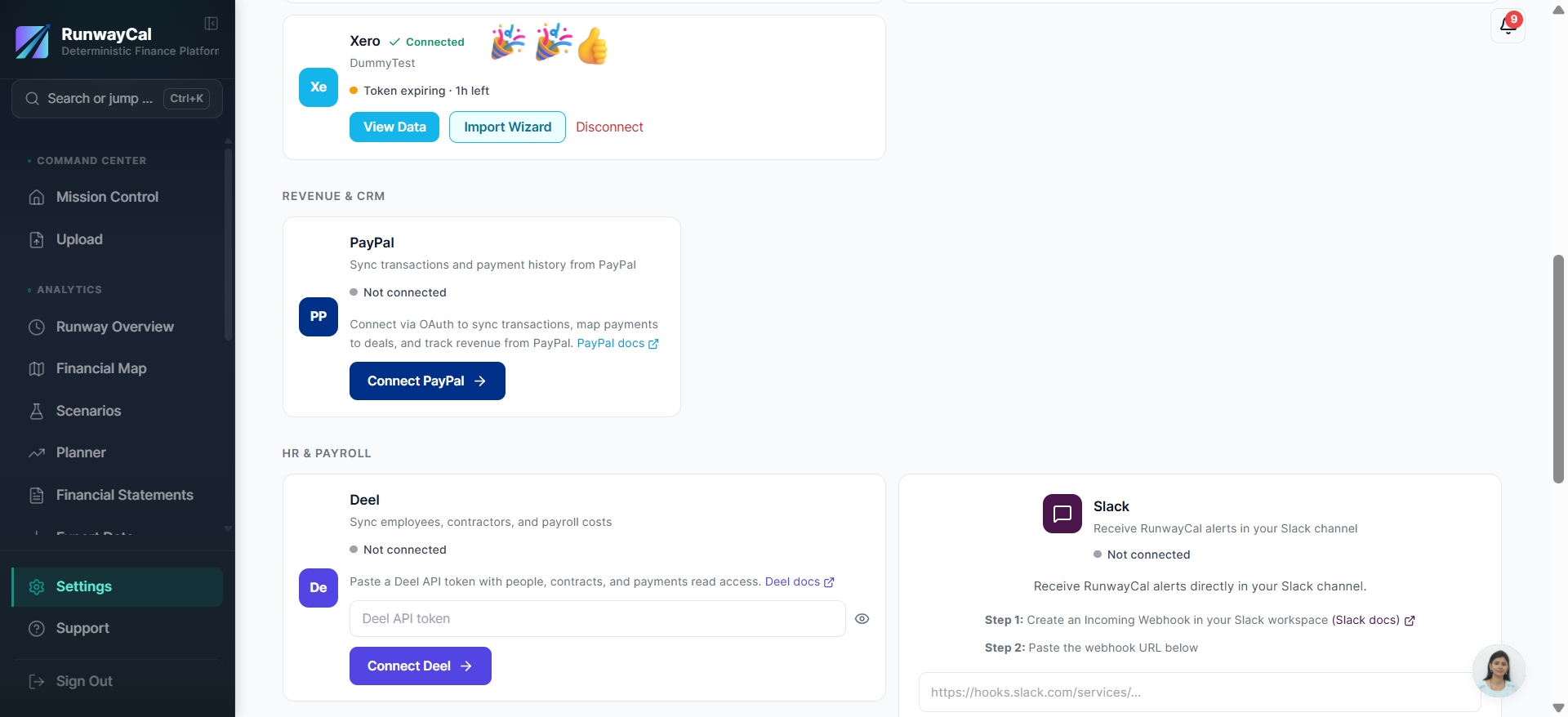
What you'll see after connecting
The Xero card shows a green "Connected" badge with your organization name. Use "View Data" to refresh and approve customer or received-payment imports.
Available connection data
| Data | Description |
|---|---|
| Invoices | Invoice amounts, due dates, payment status |
| Payments | Payment amounts and dates |
| Bank transactions | Readable source context; not a continuous reconciliation feed into RunwayCal |
Troubleshooting
Invalid scope
Disconnect and reconnect from RunwayCal, then review the permissions shown by Xero. If the error persists, confirm that your Xero role can authorize the organization.
Token expiring
Normal. RunwayCal auto-refreshes Xero tokens.
Wrong organization
Disconnect and reconnect, selecting the correct organization during the Xero authorization step.