
QuickBooks
Accounting
Review QuickBooks customers and received invoice payments before importing them.
What it does
Connect QuickBooks to read supported customers, invoices, payments, bank-account context, vendors, employees, and bills. The current import workflow stages customers as deals and received invoice payments as receipts for your approval; it does not import every accounting record into RunwayCal.
Prerequisites
- A QuickBooks Online account (Simple Start, Essentials, or Plus)
- Admin access to your QuickBooks company
Step-by-step setup
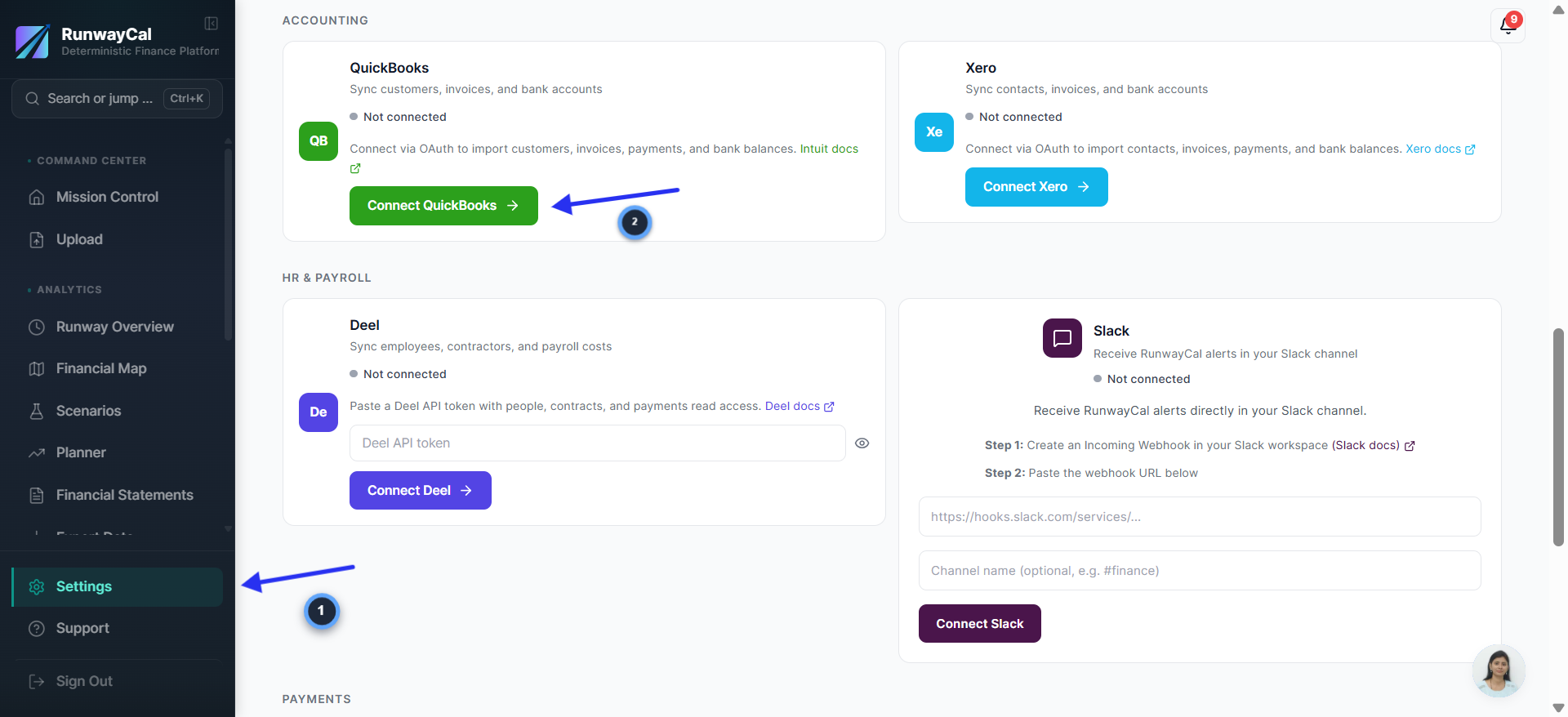
Go to Settings and click Connect QuickBooks
- 1.In RunwayCal, click "Settings" in the left sidebar
- 2.Click the "Integrations" tab at the top
- 3.Scroll down to the "Accounting" section
- 4.Find the QuickBooks card and click "Connect QuickBooks"
Log in to your Intuit account
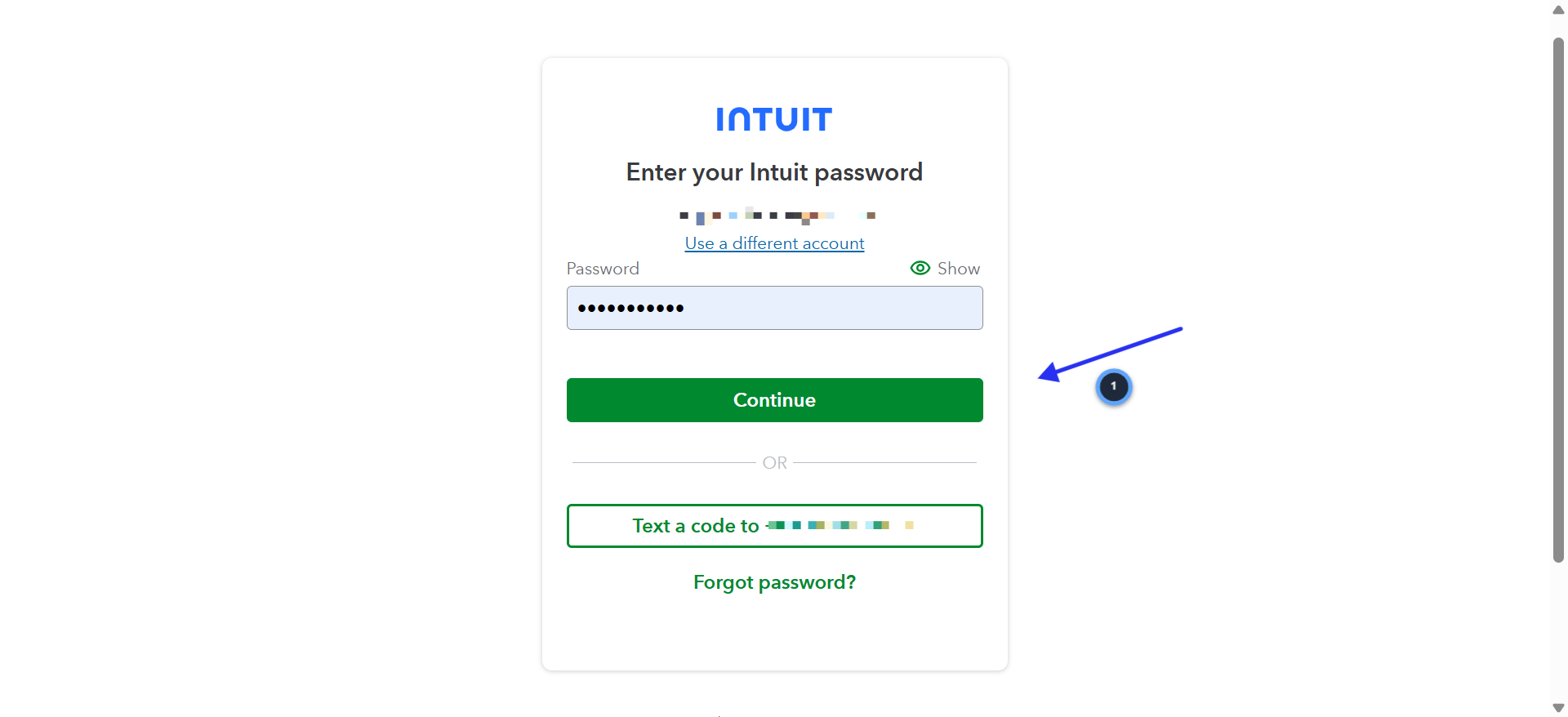
- 1.You will be redirected to Intuit's sign-in page
- 2.Enter your Intuit/QuickBooks email and password
- 3.Click "Continue"
- 4.If prompted for two-factor authentication, complete the verification
Authorize RunwayCal to access your QuickBooks data
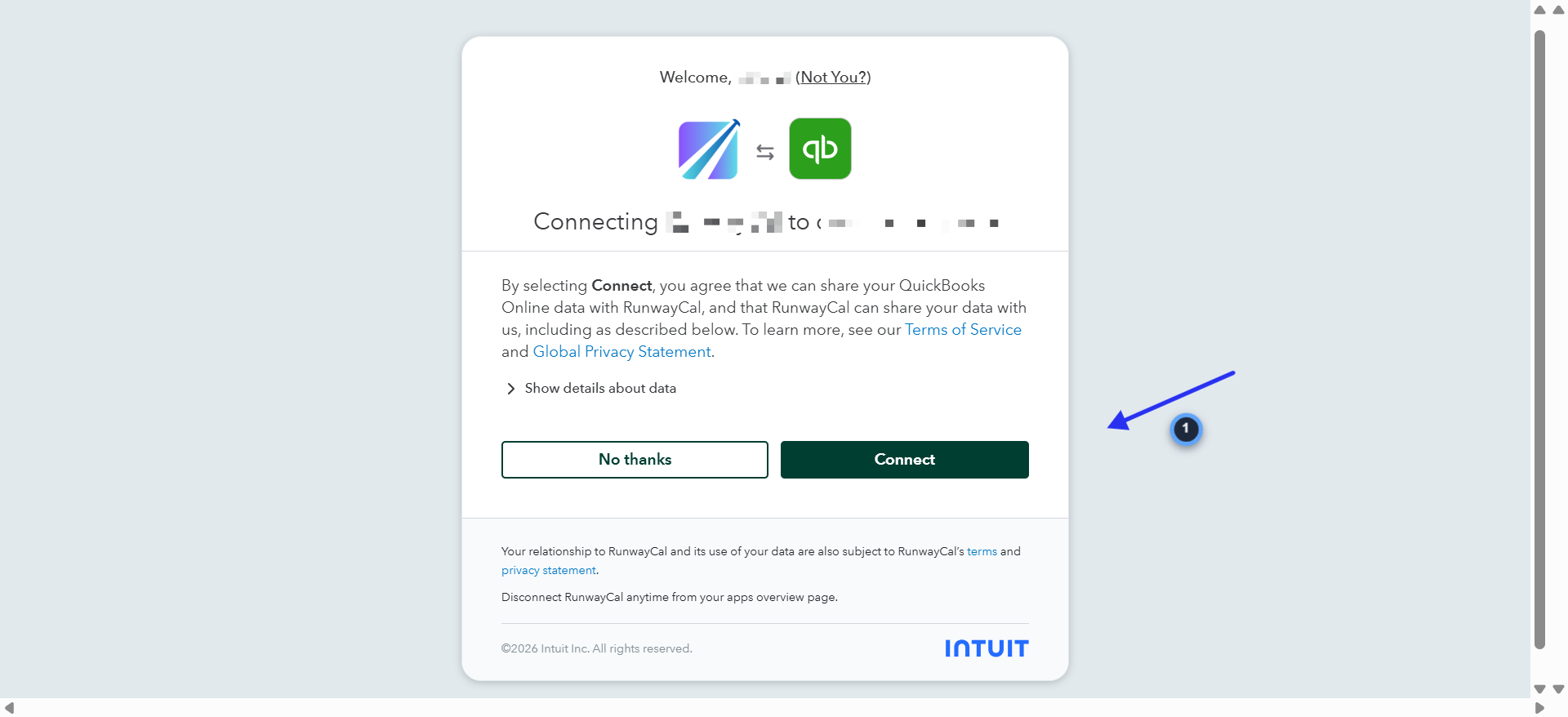
- 1.You will see a consent screen showing the RunwayCal logo connecting to QuickBooks
- 2.Review the data sharing details (click "Show details about data" to see what RunwayCal will access)
- 3.RunwayCal reads supported QuickBooks records. It never modifies your QuickBooks data.
- 4.Click "Connect" to authorize
Verify connection in RunwayCal
- 1.You will be redirected back to RunwayCal
- 2.The QuickBooks card should show a green "Connected" badge
- 3.Your QuickBooks company name will appear below the badge
- 4.You may see an amber "Token expiring" indicator. This is normal. RunwayCal auto-refreshes your QuickBooks token.
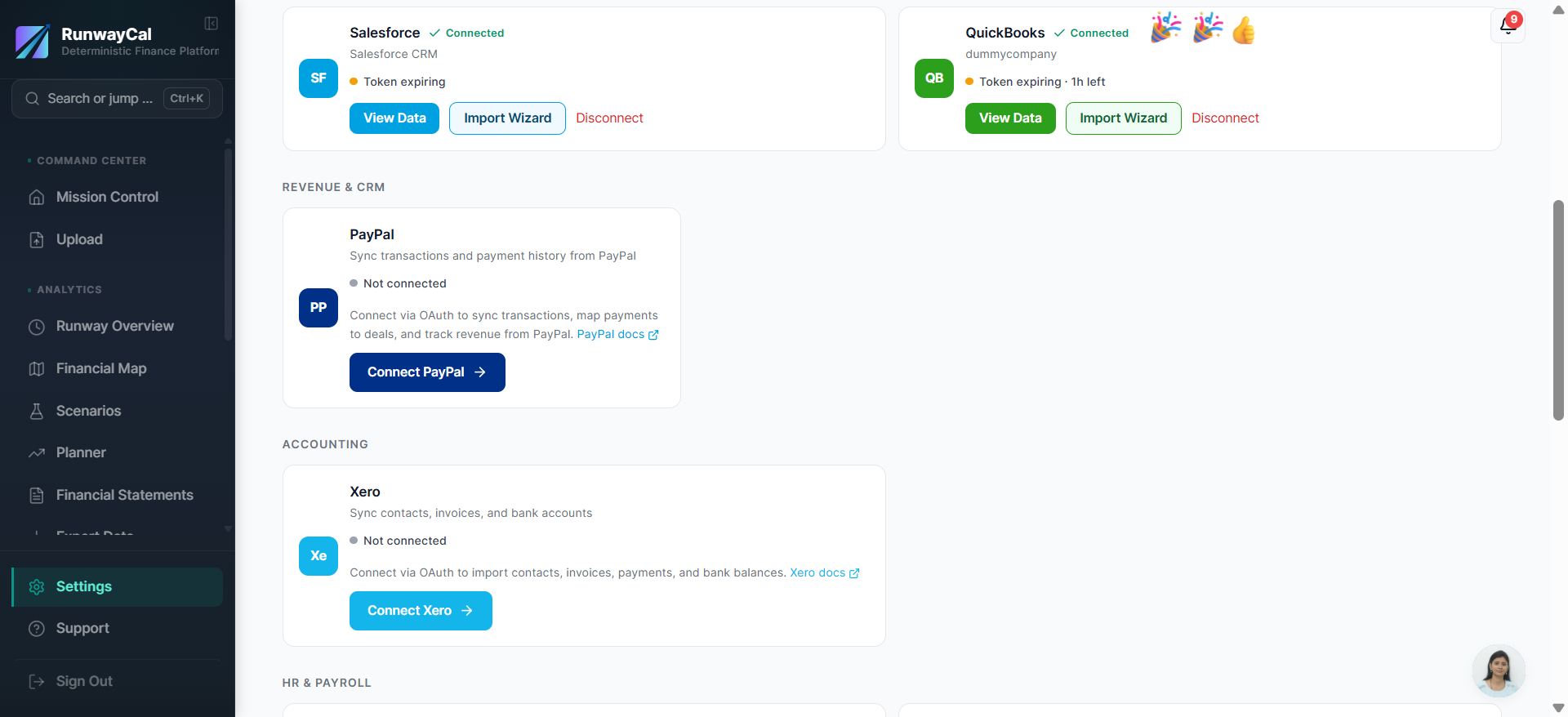
What you'll see after connecting
The QuickBooks card shows a green "Connected" badge with your company name. Use "View Data" to refresh and approve customer or received-payment imports.
Available connection data
| Data | Description |
|---|---|
| Invoices | Invoice amounts, dates, payment status |
| Payments | Payment receipts and dates |
| Customers | Customer names for deal matching |
| Additional source context | Bank accounts, vendors, employees, and bills can be read but do not all become RunwayCal records |
Troubleshooting
Connection failed
Make sure you selected the correct QuickBooks company during authorization. You can only connect one company at a time.
Token expiring
Normal. RunwayCal auto-refreshes QuickBooks tokens.
Sandbox vs production
If you see test data, you may have connected a sandbox company. Disconnect and reconnect with your production company.